Template Rows
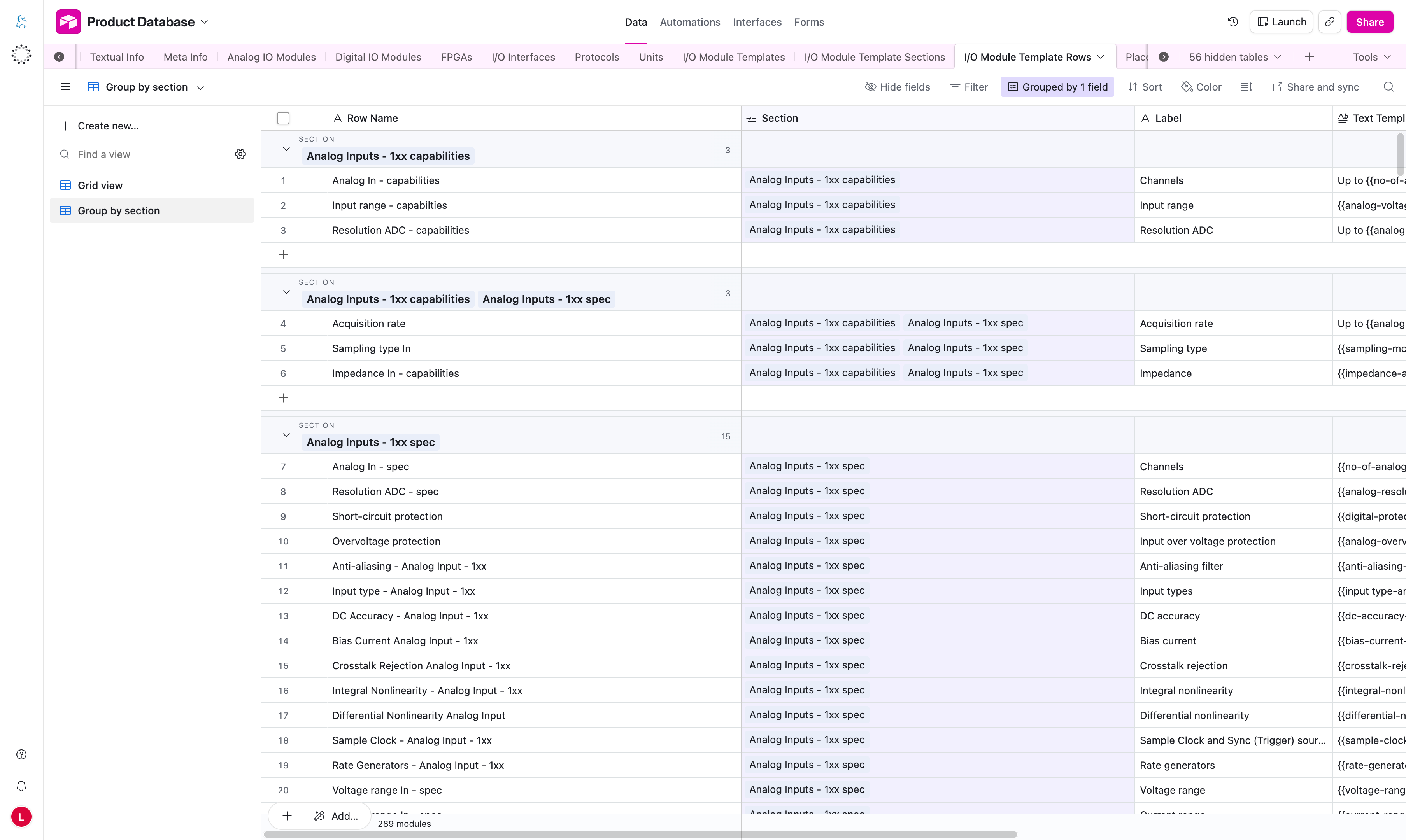
The I/O Module Template Rows table defines the individual label/value rows that appear inside each section on the product page.
Each row becomes one line in the Capabilities or Specifications table.
These same rows are also reused by Configuration Packages. In that case, the row Label becomes the left-side row label in the package table, and the Text Template is resolved once for each matching Configuration Package record.
Example On The Product Page
Analog Inputs
  Channels                Up to 16 true bipolar differential
  Acquisition rate        Up to 200 ksps
  Resolution ADC          Up to 16 bit
Analog Inputs comes from Template Sections.
Channels, Acquisition rate, and Resolution ADC come from the Template Row Label.
The values on the right come from Text Template.
Important Columns
| Column | What it means |
|---|---|
Row Name | Internal or editorial row name for the row record. |
Section | Section or sections where the row appears. |
Label | Row label shown in the left column of the product table. |
Text Template | Text or value template shown in the right column after placeholders are resolved. |
Merge Group | Optional group key used to combine multiple template rows into one rendered value. Rows with the same label and merge group are joined together. |
Join Strategy | Optional single-select field that controls how rows in the same merge group are joined, for example with commas, slashes, semicolons, and, or line breaks. |
Placeholder Syntax
Use placeholders in this format:
{{placeholder-key}}
Placeholder keys are stored in Placeholder Definitions without the braces.
Use kebab-case keys, for example:
{{speed}}{{no-of-analog-in-se}}{{operating-temperature-unit}}{{cable-link-token}}
Lowercasing The First Letter Of A Placeholder
Use | lower-first when a placeholder appears in the middle of a sentence and should start with a lowercase letter.
This modifier is used in Text Template fields.
Example:
fast, {{sampling-mode-analog-out | lower-first}}-sampling
This renders as:
fast, simultaneous-sampling
Use this only where needed. Do not use it everywhere by default.
Use | lower-first only in the text field where the placeholder appears. Do not add it to the Placeholder Key in Placeholder Definitions.
Do not use | lower-first for technical acronyms or product names unless you are sure the first letter should be lowercase.
Examples that should usually stay unchanged:
TTLPWMCANI/O
Underlining Placeholder Output
Use | underline when a placeholder value should be rendered as underlined text.
This modifier is used in Text Template fields.
Syntax:
{{placeholder-key | underline}}
How it works:
- The placeholder is resolved first.
- The resulting text is then wrapped in an HTML
<u>tag. - If the pipe is not used, the value is rendered as plain text.
Example:
{{voltage-range-analog-in | underline}}
If voltage-range-analog-in resolves to:
-10 to 10 V
The rendered output becomes:
<u>-10 to 10 V</u>
Example in a sentence:
Input range: {{voltage-range-analog-in | underline}}
Rendered output:
Input range: <u>-10 to 10 V</u>
Use this only where underlined styling is meaningful. Do not apply it to every placeholder by default.
Use | underline only in the text field where the placeholder appears. Do not add it to the Placeholder Key in Placeholder Definitions.
Rich text rendering supports inline <u>...</u> output across shared rich-text components on the site. Underlined placeholder output can also appear alongside existing inline formatting such as bold text and links.
The pipe affects the resolved value, not the placeholder key itself. The frontend must allow <u> tags for the underline to appear correctly.
Unit Conversion Pipes
Unit conversion pipes are supported for Type = unit placeholders from the Placeholder Definitions table.
A numeric data placeholder can be followed by a unit placeholder pipe. The renderer divides the source value by that unit placeholder's Base Unit Factor and then appends the unit label from Display Text.
Syntax:
{{data-placeholder-key | unit-placeholder-key}}
Example:
- source value in Airtable:
13600 - template:
{{impedance-analog-in-resistance | resistance-default-unit}} - unit definition:
Display Text = kΩBase Unit Factor = 1000
- rendered output:
13.6 kΩ
How it works:
- The source Airtable field must store a plain numeric value.
- A
dataplaceholder points to that source field. - A
unitplaceholder defines the display label and conversion factor. - The template row uses pipe syntax to choose the display unit.
Recommended data model:
- For each unit family, choose one canonical storage unit in Airtable.
- Store all values for that family in that chosen unit.
- Define all other unit placeholders relative to that storage unit using
Base Unit Factor.
Example for resistance when Airtable stores values in kΩ:
resistance-unit-kiloohm-default->Display Text: kΩ,Base Unit Factor: 1resistance-unit-ohm->Display Text: Ω,Base Unit Factor: 0.001resistance-unit-megaohm->Display Text: MΩ,Base Unit Factor: 1000
With a stored Airtable value of 13.6, the following outputs are possible:
{{impedance-analog-in-resistance | resistance-unit-ohm}}->13600 Ω{{impedance-analog-in-resistance | resistance-unit-kiloohm-default}}->13.6 kΩ{{impedance-analog-in-resistance | resistance-unit-megaohm}}->0.0136 MΩ
All Type = unit placeholders in the Placeholder Definitions table are supported by the code as unit-conversion pipes.
Base Unit Factor may be greater than 1 or smaller than 1. Factors smaller than 1 are fully supported, for example when converting from kΩ to Ω.
The source value must be numeric only. Values that already include unit text, ranges, or free text will not convert correctly.
Current Limitations
- The system does not validate whether a chosen unit pipe matches the correct physical quantity.
- Only simple linear conversions are supported.
- Non-linear conversions are not supported.
Combining Optional Rows
Use one Text Template row for one complete optional piece of information.
If a required product value is missing, that row can be skipped.
Do not type commas, slashes, or other separators manually into one long template when the values are optional.
Instead, split the optional values into separate rows and use Merge Group plus Join Strategy.
For example, instead of writing one long template with a manual comma:
{{analog-voltage-range-input-min-v}} to {{analog-voltage-range-input-max-v}} V, {{current-range-analog-in-min}} to {{current-range-analog-in-max}} mA
Split it into separate rows and give them the same merge group:
| Label | Text Template | Merge Group | Join Strategy |
|---|---|---|---|
Input range | {{analog-voltage-range-input-min-v}} to {{analog-voltage-range-input-max-v}} V | input-range | comma |
Input range | {{current-range-analog-in-min}} to {{current-range-analog-in-max}} mA | input-range | comma |
If both values are available, the product page renders:
Input range -10 to 10 V, 0 to 20 mA
If the current range is missing, the product page renders only:
Input range -10 to 10 V
The comma is added by Join Strategy, so no broken comma appears when one value is missing.
Multiple Lines Under One Label
Different Merge Group values under the same label render as separate lines.
| Label | Text Template | Merge Group | Join Strategy |
|---|---|---|---|
Input range | {{analog-voltage-range-input-min-v}} to {{analog-voltage-range-input-max-v}} V | voltage-current | comma |
Input range | {{current-range-analog-in-min}} to {{current-range-analog-in-max}} mA | voltage-current | comma |
Input range | {{resistance-min}} to {{resistance-max}} Ω | resistance-capacitance | comma |
Input range | {{capacitance-min}} to {{capacitance-max}} pF | resistance-capacitance | comma |
This renders as:
Input range
  -10 to 10 V, 0 to 20 mA
  100 to 1000 Ω, 10 to 50 pF
Rows inside the same Merge Group are joined using Join Strategy. Different merge groups under the same label are shown on separate lines.
Join Strategy Values
Configure Join Strategy as a single-select field in Airtable to avoid typos and inconsistent values.
| Value | Output |
|---|---|
newline | line break |
comma | , |
slash | / |
semicolon | ; |
and | and |
none | no separator |
If Merge Group is empty, the row is rendered as a standalone row.
If Join Strategy is empty for a row inside a merge group, the default behavior is newline.
How To Use This Table
- Put placeholders in
Text Template, not inLabel, unless you deliberately need dynamic label text. - Use meaningful row labels that match how editors read the product page.
- Keep placeholder spelling consistent with the definitions table.
- Reuse the same placeholder key wherever the same value should appear.
- Use
Merge GroupandJoin Strategywhen several optional rows should be combined without manually typing separators such as commas or slashes. - If a value is empty or unresolved, the row may be skipped depending on the current rendering behavior.
If a row needs too many placeholders, consider splitting it into simpler rows.